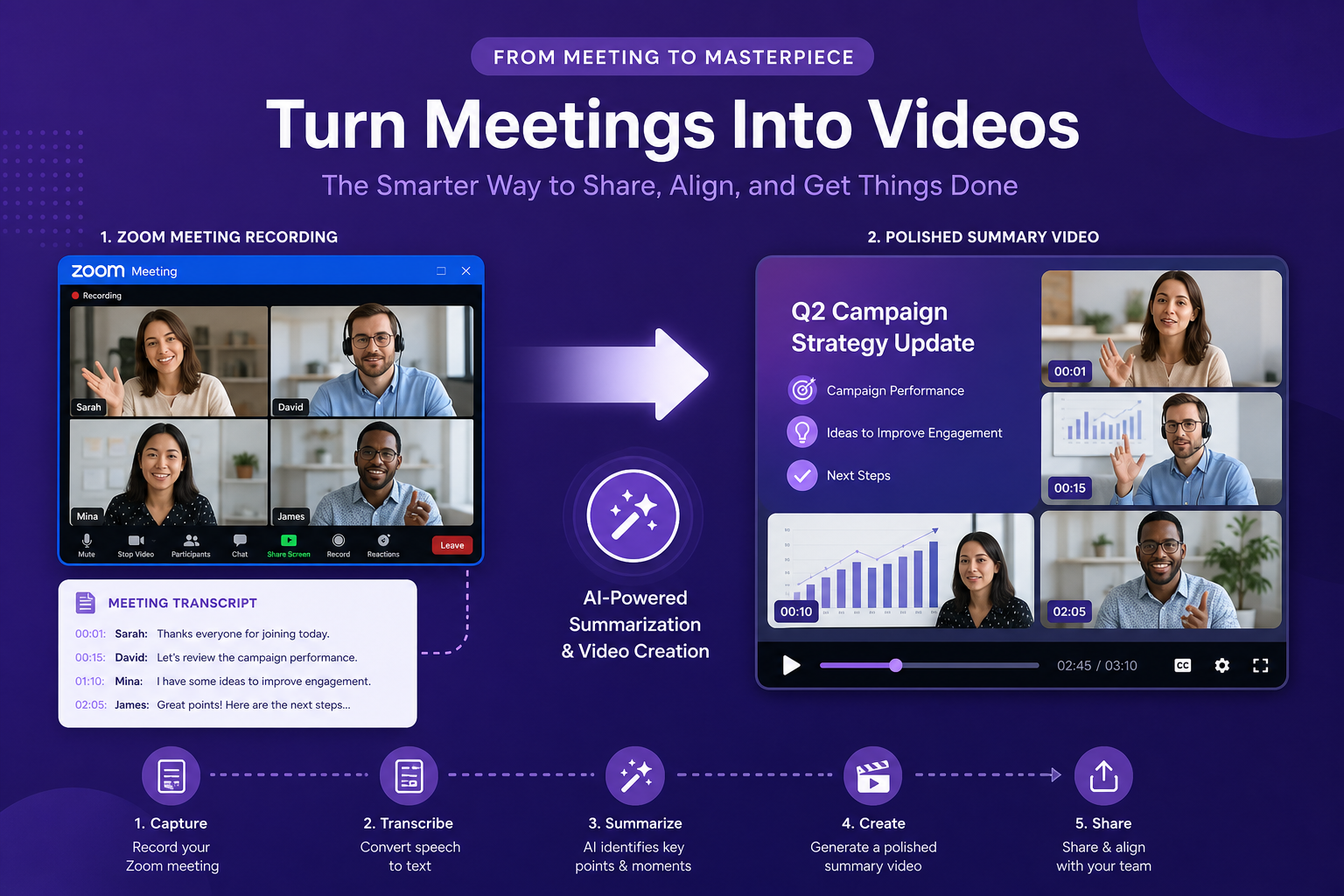
Meeting workflow
Nobody wants to watch a 90-minute Zoom replay. A summary video they will actually watch.
Zoom recordings pile up and go unwatched. Turning the key moments into a structured summary video gives your team, clients, and stakeholders something worth their time.
Why Zoom recordings go unwatched
Most Zoom recordings are long. An hour-long meeting might contain ten minutes of real signal — a key decision, a product update, a process change. The rest is preamble, crosstalk, and follow-up questions. Asking someone to watch the full recording to find those ten minutes is not a reasonable ask.
A summary video solves this. It takes the most important points from the meeting and turns them into a tight, watchable asset that someone can absorb in under five minutes — without needing to scrub through the full replay.
Start with the transcript or AI summary
Zoom automatically generates a transcript for most recorded meetings when transcription is enabled. If you use Zoom AI Companion, you also get an auto-generated meeting summary with action items and key topics.
Either asset works as source material. The transcript captures everything verbatim. The AI summary distills the main points. Both can be exported and turned into a structured video.
- Enable Zoom transcription in your account settings before the meeting
- Download the .vtt or .txt transcript after the meeting ends
- Or export the Zoom AI Companion summary as plain text
- If using a third-party recorder, export whatever text summary is available
Structure the content before you video it
A transcript needs light editing before it becomes a good video source. Remove the filler, the off-topic tangents, and the repeated points. Keep the decisions made, the action items assigned, the context that newcomers would need, and any data or metrics that were discussed.
A well-edited transcript or summary becomes a tight document: two to four paragraphs, a bullet list of decisions and next steps, and any key numbers. That is the right size for a three-to-five-minute video.
Turn it into a video with Blog2Video
Upload the edited transcript or summary as a document — PDF, Word, or plain text. Blog2Video reads the structure, extracts the key points, and maps them into a scene-by-scene outline.
Choose a template that fits the audience. Whiteboard works well for internal team updates. Nightfall or Newscast works for client-facing or executive briefings. Geometric Explainer is clean for product update videos that need clarity over flair.
Review the scenes, adjust any narration, then render. The output is a polished video your team can watch in minutes instead of rewinding through an hour-long recording.
Where to share the summary video
A Zoom summary video has multiple distribution paths. Share it as a link in the follow-up email so attendees can revisit decisions. Post it in the project Slack channel for async teammates. Embed it in the meeting notes doc or Notion page. For client-facing meetings, send it as a polished recap that replaces the traditional written summary.
Because it is a real video and not just another wall of text, people are far more likely to actually watch and absorb it.
Frequently Asked Questions
Can I upload a Zoom transcript directly to Blog2Video?
Yes. Export the transcript as a .txt or .docx file and upload it as a document. Blog2Video structures the content into scenes automatically.
Does this work with Zoom AI Companion summaries?
Yes. Copy the Zoom AI Companion summary into a document, save it as PDF or Word, and upload it. The summary format — with key topics and action items — maps well into a structured video.
How long should the source document be for a good summary video?
A condensed summary of 300 to 600 words is ideal. If you're working from a full transcript, edit it down to the key decisions, action items, and context before uploading.
What template works best for meeting summary videos?
Whiteboard is approachable and clear for internal team updates. Newscast works well for executive briefings. Nightfall gives client-facing recaps a polished, premium feel.