Meeting workflow
Teams records everything. The summary video is what your team will actually consume.
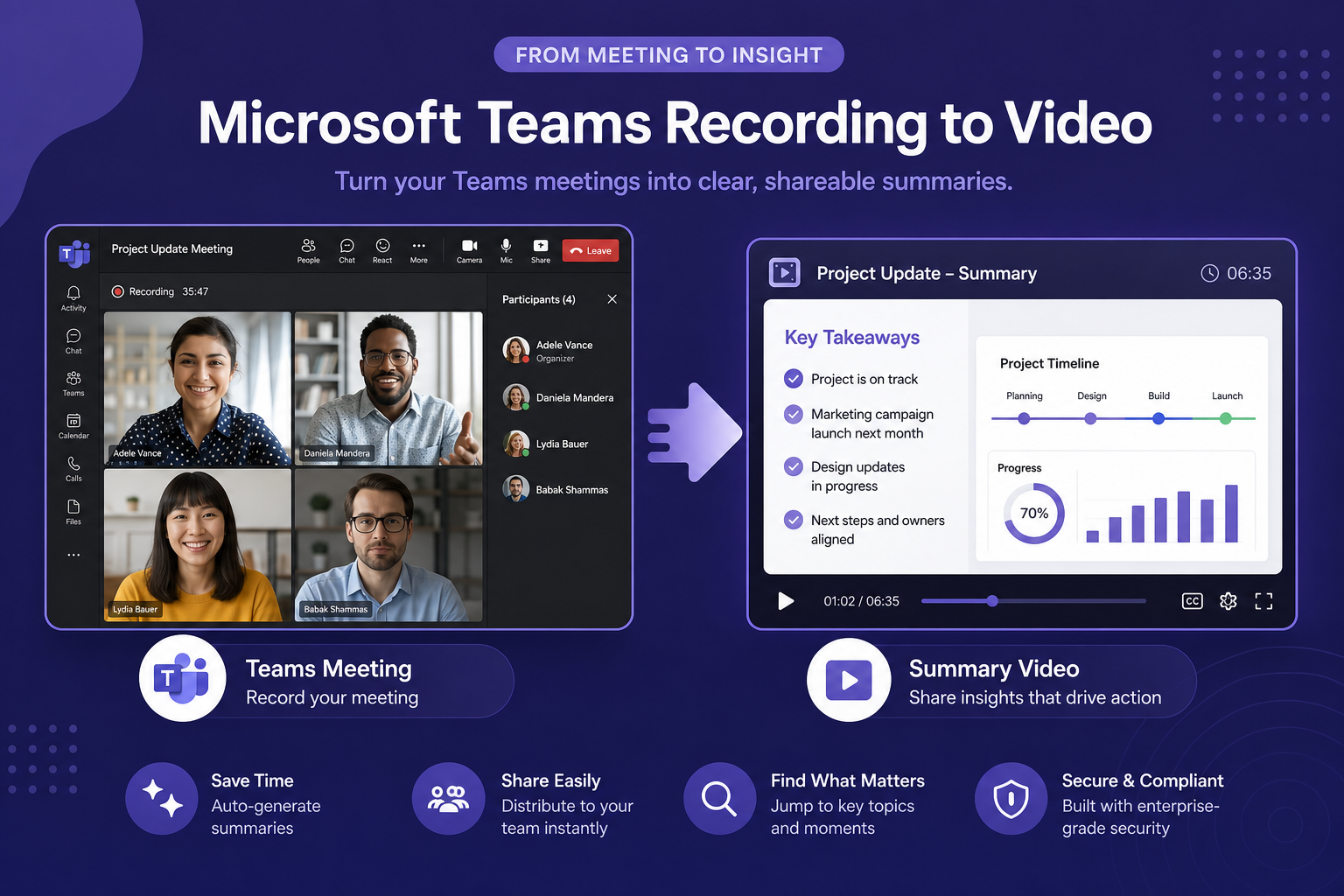
Microsoft Teams automatically transcribes recorded meetings and, with Copilot, generates structured summaries. Turn that output into a video your team can watch in five minutes instead of replaying an hour-long call.
What Microsoft Teams gives you after a recorded meeting
When you record a Teams meeting, the recording is saved to SharePoint or OneDrive, and a transcript is generated automatically if transcription is enabled. If your organization uses Microsoft 365 Copilot, you also get an AI-generated meeting summary with key discussion points, decisions, and action items.
The Copilot summary is the most useful asset for video production. It is already organized, condensed, and structured around meeting outcomes rather than raw verbatim dialogue.
Getting the transcript or Copilot summary
After the meeting ends, open the meeting in your Teams calendar. The transcript and Copilot Recap are accessible from the meeting details panel. You can copy the Copilot summary directly or download the transcript as a .docx or .vtt file from the recording controls.
For a summary video, the Copilot Recap is usually the better starting point. If Copilot is not available, clean up the raw transcript — remove filler speech, repeated questions, and anything tangential to the main outcomes.
- Open the meeting in Teams calendar and find the Recap or transcript
- Copy the Copilot Recap summary or download the .docx transcript
- Edit the transcript down to decisions, action items, and key context
- Save as a Word document or plain text file for upload
Why summary videos work better than recording links for async teams
A recording link shared in Teams or Outlook asks something unreasonable of teammates who weren't there: watch an hour of footage to find the five minutes that matter to them. Most people don't. The meeting's outcomes get lost in a recording nobody replays.
A summary video changes the format. It is short, structured, and watchable. It fits in an email, a Teams message, or a SharePoint page. People who weren't on the call can catch up without committing to the full replay.
Converting the summary to video
Upload the Teams Copilot Recap or edited transcript to Blog2Video as a document. The system structures the content into scenes with narration and visual layouts automatically.
Newscast works well for formal briefings and cross-functional updates. Whiteboard or Geometric Explainer suits internal team recaps. Nightfall is a strong choice when the meeting outcome is being shared with external stakeholders or leadership.
Share the rendered video in the Teams channel, attach it to the follow-up email, or embed it in the relevant SharePoint page alongside the written notes.
Frequently Asked Questions
Where do I find the transcript for a recorded Teams meeting?
Open the meeting in your Teams calendar. The transcript and Copilot Recap appear in the meeting details panel. You can copy the text or download the transcript as a .docx file.
Can I use Microsoft Copilot summaries as source material?
Yes. Copilot Recap summaries are already structured around topics and action items, which makes them ideal for video. Copy the summary, add any missing context, and upload it as a document.
What if my organization doesn't have Microsoft 365 Copilot?
Use the standard Teams transcript. Download it as a .docx, edit out the filler and tangents, and keep decisions, action items, and key context. That document works just as well as a Copilot summary.
What template works best for Teams meeting summary videos?
Newscast for formal cross-functional briefings. Whiteboard or Geometric Explainer for internal team updates. Nightfall for leadership or stakeholder-facing outputs.