Recording workflow
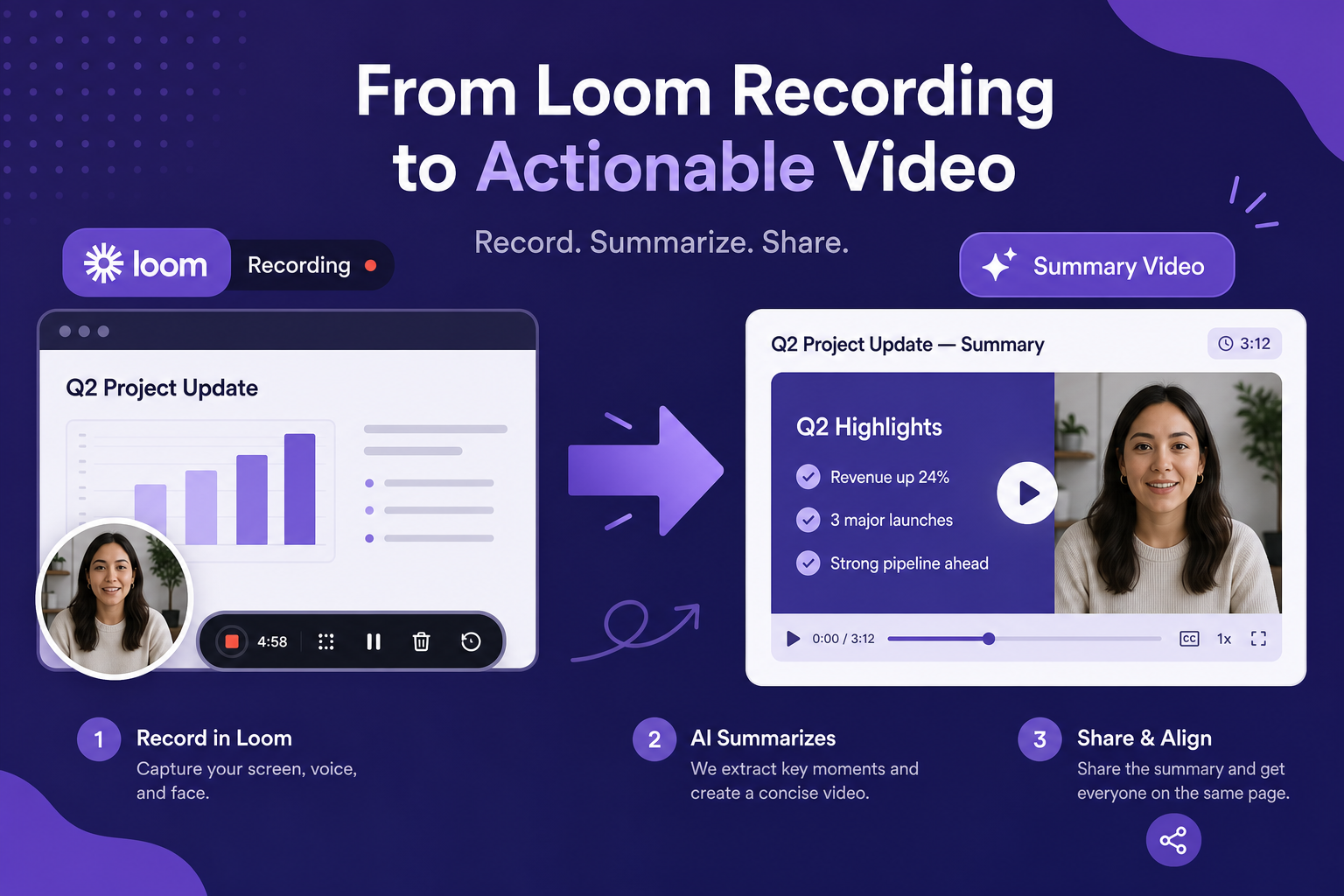
Loom records the walkthrough. A summary video makes it distributable.
Loom is great for async communication — but a ten-minute screen recording walkthrough is not always the right format for every audience. Turn the Loom transcript or AI summary into a polished summary video that works anywhere.
When a Loom is not enough
Loom is excellent for casual async communication — quick walkthroughs, developer handoffs, product feedback, and async status updates. But a raw Loom recording has real distribution limits. It lives in the Loom platform, requires an account to view in some contexts, and does not embed cleanly in all destinations.
A summary video solves the distribution problem. It takes the substance of the Loom walkthrough — the key points, the decisions, the instructions — and packages it into a format that works in emails, newsletters, docs, websites, and any platform that accepts video embeds.
Getting the transcript from Loom
Every Loom recording automatically generates a transcript. Open the recording, find the Transcript tab, and copy the text. Loom also offers AI-powered summaries that condense the recording into a short overview — these are available on Pro and Business plans.
For a summary video, the AI summary is the better starting point. It strips the verbal filler, repetition, and false starts that make raw transcripts noisy. If you need more detail, pull specific sections from the full transcript and weave them in.
- Open the Loom recording and find the Transcript tab
- Copy the AI summary if available, or the full transcript
- Edit down to the key points, steps, or decisions
- Save as a plain text or Word document for upload
What types of Loom recordings convert best
Product walkthroughs, feature explanations, onboarding tutorials, code reviews, and async feedback sessions all work extremely well as summary video source material. These Looms already have a clear structure: here is the context, here is what we built, here is what it does, here is what you need to do.
Internal process documentation Looms are also strong candidates. If someone recorded a walkthrough of a complex internal tool or workflow, a summary video can replace it as the onboarding asset — easier to embed in documentation, easier to update, and easier to share with new hires.
Converting the Loom summary to video
Upload the Loom summary or edited transcript to Blog2Video. The platform structures the content into a scene outline, generates narration, and maps each section to an appropriate visual layout.
For walkthroughs and technical explanations, Geometric Explainer or Matrix keeps things clear and code-friendly. For product demos or feature announcements, Nightfall or Spotlight gives the output a polished, professional finish. For educational or onboarding content, Whiteboard keeps the tone approachable.
Once rendered, the video can be embedded anywhere, shared as a direct link, or downloaded as MP4, PDF, or PNG slides depending on how you want to distribute it.
Frequently Asked Questions
Where do I find the transcript for a Loom recording?
Open the recording in your Loom library and select the Transcript tab. You can copy the full text from there. AI summaries are available on Pro and Business plans under the Summary tab.
Should I use the Loom AI summary or the full transcript?
The AI summary is usually better — it's already condensed and removes the verbal filler that makes raw transcripts hard to work with. Use the full transcript for detail-heavy walkthroughs where the steps need to stay precise.
What types of Loom recordings work best as summary videos?
Product walkthroughs, onboarding tutorials, feature explanations, code reviews, and async process documentation all convert well because they already have a clear structure the video can follow.
Can I distribute the summary video outside of Loom?
Yes. Blog2Video generates a standard MP4 video with a shareable URL and iframe embed code. You can distribute it anywhere — emails, websites, Notion docs, Slack, or embedded in help documentation.