Document how-to
Turn a PDF into a video by keeping its structure, not just its text
Most PDF-to-video tools either read the file page by page as a slideshow or summarize it into a generic avatar script. Neither approach keeps the original document's logic. Here is a workflow that does.
Start with a PDF that already has a teaching arc
PDF-to-video works best when the source document already explains something in order: a whitepaper, a lesson handout, a research summary, a guide, or a report with headings and sections. If the PDF is just a scanned form or a dense, unstructured dump of text, the video will inherit that confusion.
Documents with headings, bullet lists, diagrams, and worked examples convert especially well because that structure becomes the scene outline almost directly.
Don't treat every page as one video frame
The weakest version of PDF-to-video is a literal slideshow: render each page as a frame, add narration, done. That ignores the fact that PDF pages are a print layout decision, not a video pacing decision — a dense page might need three scenes, and three short pages might collapse into one.
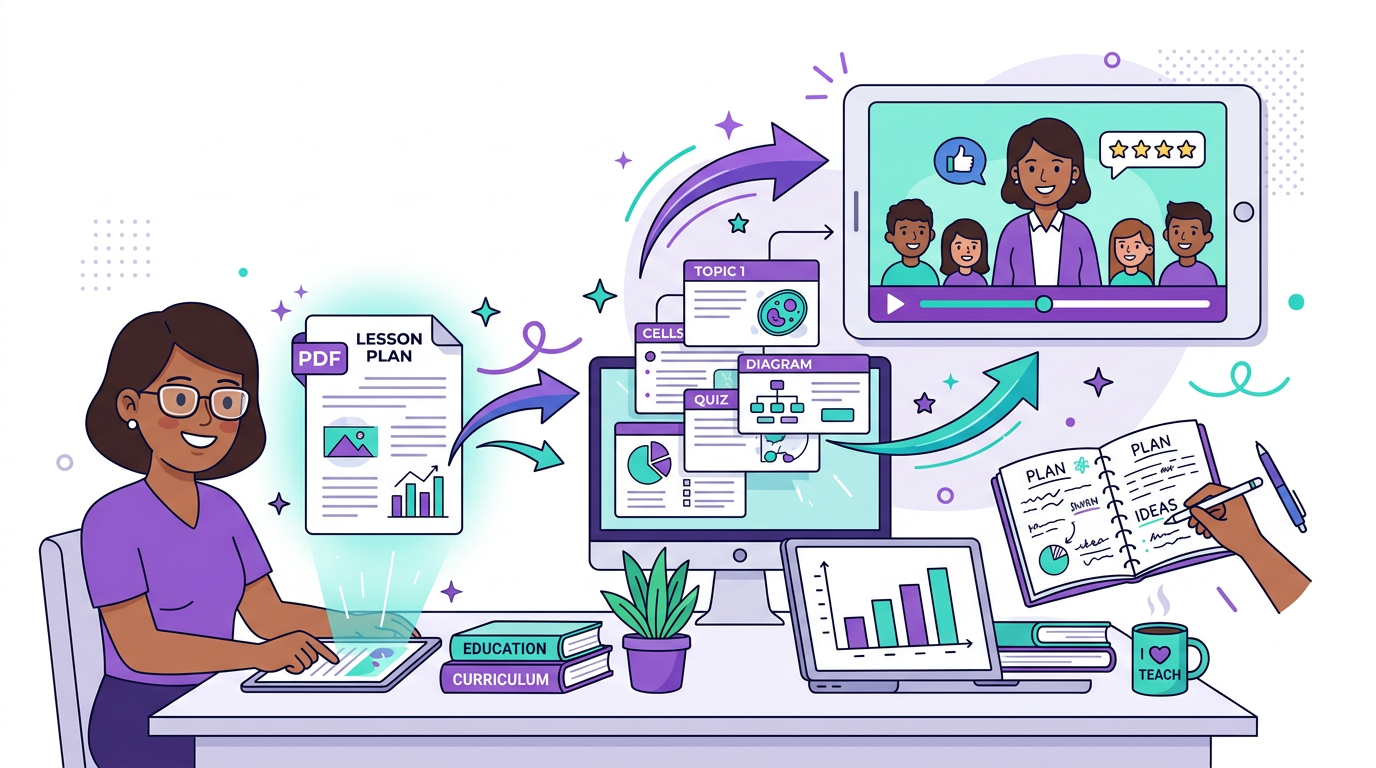
A stronger workflow reads the PDF's actual structure — headings, sections, and supporting content — and maps that structure to scenes, independent of where the original page breaks fell.
- Use headings and subheadings as scene boundaries, not page boundaries.
- Let dense sections (data tables, multi-step processes) split into multiple scenes.
- Carry diagrams and charts into the video as visuals instead of narrating around them.
Keep the narration grounded in the document
A PDF-to-video conversion should sound like a narrated version of the document, not a generic AI summary that happens to share a topic with it. That distinction matters most for research papers, technical guides, and lesson material where precision is the point.
If the conversion strips out specific numbers, caveats, or examples in favor of a smoother-sounding script, it has solved the wrong problem.
Pick a template that matches the document's purpose
A whitepaper, a lesson PDF, and a research summary do not need the same visual treatment. Whiteboard-style templates suit teaching material and step-by-step explanations. Cleaner editorial templates suit whitepapers and research summaries where credibility matters more than pacing energy.
How Blog2Video handles this
1. Upload your PDF — Blog2Video reads the full document structure, including headings, paragraphs, lists, and images, and maps it into a scene outline.
2. Choose a template — Whiteboard is the strongest default for lesson notes and teaching material; pick a cleaner editorial template for whitepapers and research summaries.
3. Generate and review — Each scene follows a section of the original PDF. Edit any scene in the AI editor, then export as MP4, or as PNG, PDF, or PowerPoint slides if you want a deck alongside the video.
Frequently Asked Questions
How do I make a PDF into a video?
Upload the PDF into Blog2Video. It reads the document's headings, paragraphs, and images, maps them into a scene-by-scene outline, adds narration, and generates a video you can edit before exporting as MP4.
Will the video just be my PDF pages turned into a slideshow?
No. Instead of rendering each page as one frame, Blog2Video maps the document's actual section structure to scenes, so dense pages can split into multiple scenes and short pages can combine — the pacing follows the content, not the original page breaks.
Does this work for research papers and whitepapers, not just lesson PDFs?
Yes. The same structure-preserving approach works for whitepapers, research summaries, reports, and guides — anything with headings and a logical sequence of ideas.
Can I get something other than an MP4 out of the same PDF?
Yes. The same generated scenes can be exported as PNG slides, a PDF deck, or a PowerPoint file, so one PDF upload can produce a video and a slide deck without a second production pass.