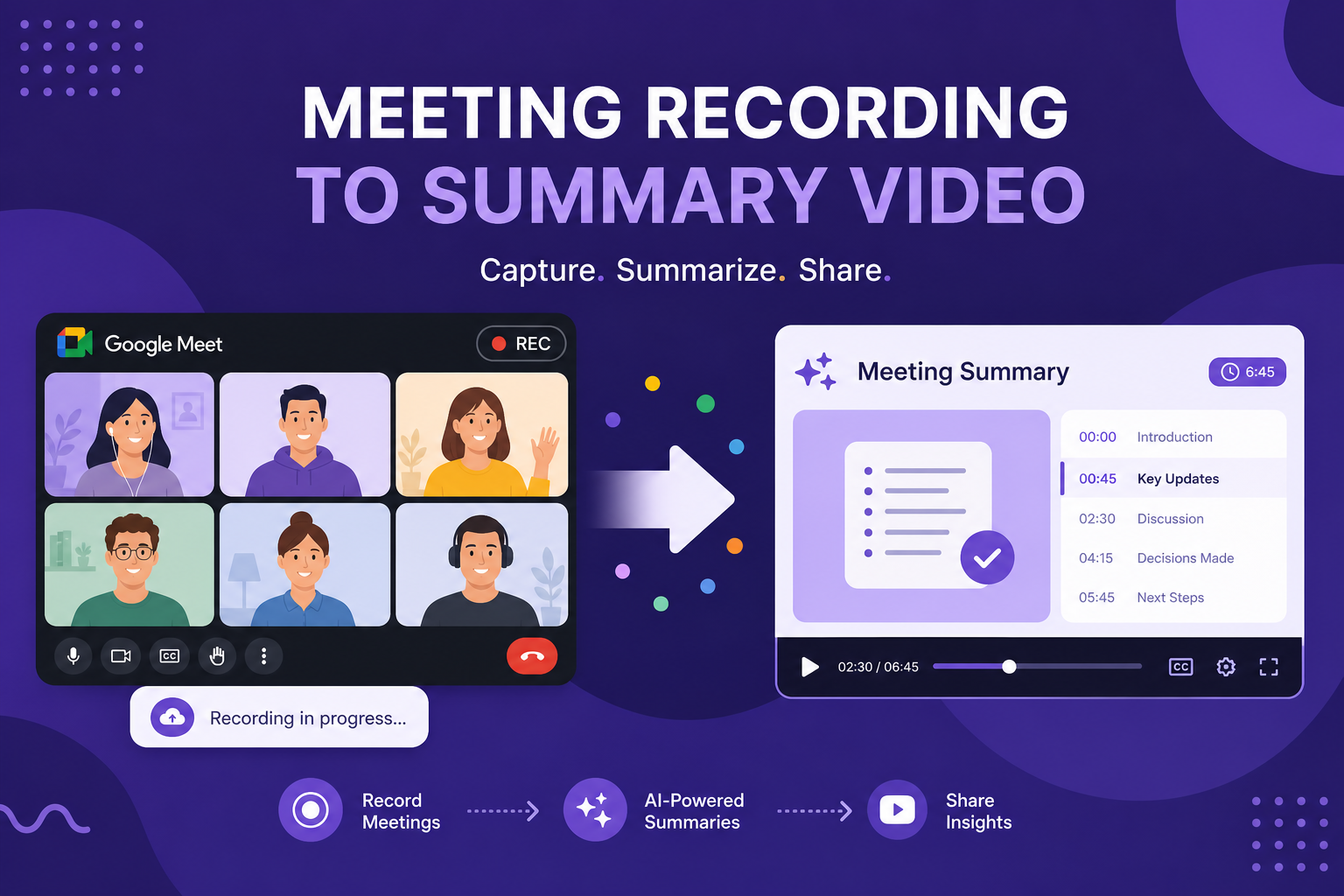
Meeting workflow
Google Meet transcripts are underused. Turn them into videos your team will actually watch.
Every recorded Google Meet generates a transcript in Google Drive. That text is all you need to produce a polished summary video — with no editing timeline, no cameras, and no post-production.
What Google Meet gives you after a recorded call
When you record a Google Meet session, two assets land in Google Drive automatically: the video recording file and a transcript document. The transcript is a time-stamped, speaker-labeled text file. If you have Google Workspace with Gemini features enabled, you may also receive an AI-generated meeting summary.
Most people open the recording. Almost nobody opens the transcript. That is a missed opportunity — the transcript is cleaner, faster to process, and far more useful as source material for a summary video.
Getting the transcript out of Google Drive
Open the meeting folder in Google Drive. Find the transcript file — it usually appears as a Google Doc named after the meeting. Open it, review the content, and export it as a Word document or plain text file.
Before exporting, do a light edit pass: remove off-topic exchanges, repeated points, and anything that would confuse someone who wasn't on the call. What remains should be the key context, decisions made, and next steps.
- Find the transcript in the meeting folder in Google Drive
- Open it as a Google Doc and remove filler, tangents, and repeated points
- Keep decisions, action items, data discussed, and key context
- Export as .docx or copy the cleaned text into a new document
Using Gemini summaries as source material
If your Google Workspace plan includes Gemini, the meeting summary is often better source material than the raw transcript. Gemini summaries include a concise breakdown of what was discussed, who said what, and what was decided — all without the transcript noise.
Copy the Gemini summary into a Google Doc, add any context that was missing, and use that as your video source. A well-structured Gemini summary can become a three-to-five-minute video with minimal editing.
Turning the document into a summary video
Upload the exported document to Blog2Video. The system reads the structure, pulls out the key points, and generates a scene-by-scene outline. You can review and edit each scene before rendering.
For internal updates, the Whiteboard or Geometric Explainer templates keep things clear and approachable. For cross-functional or leadership briefings, Newscast or Nightfall give the output a more polished, professional look.
Once rendered, share the video link instead of the recording — people are far more likely to watch a five-minute summary than scrub through an hour-long replay.
Frequently Asked Questions
Where do I find my Google Meet transcript?
After a recorded meeting, Google Drive automatically saves both the video and a transcript document in a folder named after the meeting. Find it in Drive and open it as a Google Doc.
Can I use a Gemini meeting summary instead of the full transcript?
Yes. Gemini summaries are already condensed and structured, which makes them ideal source material. Copy the summary, add any missing context, and upload it as a document.
What file format should I export the transcript in?
Export as .docx from Google Docs, or copy the text and save it as a plain text file. Both formats upload cleanly to Blog2Video.
What template works best for Google Meet summary videos?
Whiteboard and Geometric Explainer work well for internal team recaps. Newscast and Nightfall are better for leadership briefings or client-facing summaries where a polished look matters.