Automatic CTA — April 2026
Every video now ends with a call to action — automatically.
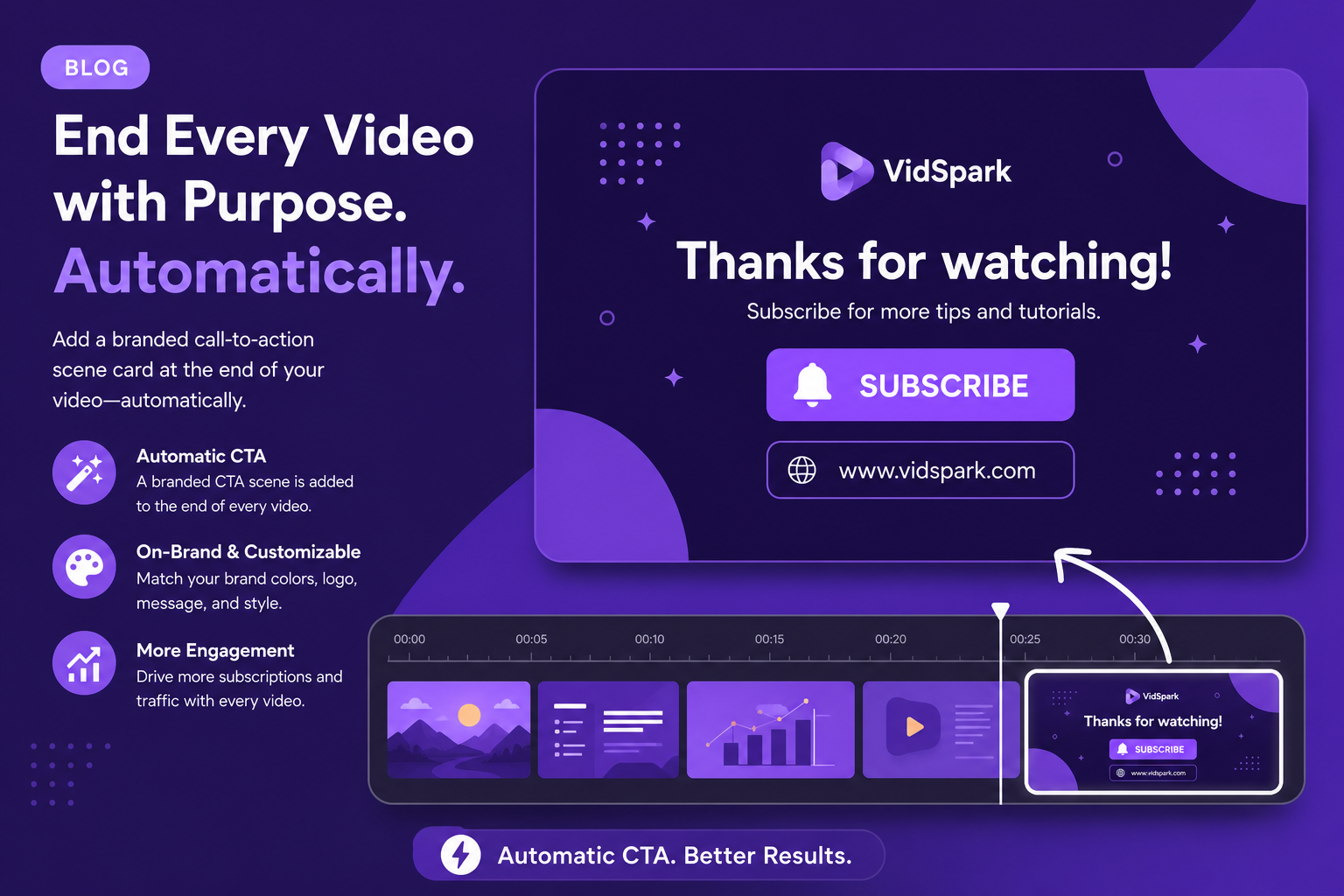
Blog2Video now appends a branded call-to-action scene to the end of every video it generates. Set your CTA once in your account settings — your link, your message, your brand — and it appears at the close of every future video without manual scene editing.
Why the last scene of a video is the most important one to get right
The end of a video is where viewers are most primed to act. They have just spent several minutes with your content. Their attention is engaged. If the video closes on a clean branded frame with a clear next step, a meaningful percentage of those viewers will take it.
Most AI-generated videos end on a generic closing card or simply cut off after the last content scene. The creator has to remember to open the scene editor, add a final scene, configure the layout, write the CTA copy, and style it correctly — every single time. It is a small step that gets skipped under time pressure more often than it should.
Blog2Video's automatic CTA feature removes that friction. Configure your call to action once and it appears at the end of every video from that point forward — whether you are generating one video or running bulk generation across fifty posts.
What gets added and how to configure it
When you set up your CTA in account settings, you define the primary message — a short line that tells viewers what to do next — your target URL, and optional supporting text such as a subscribe prompt, discount code, or newsletter sign-up incentive.
Blog2Video generates the closing scene using your active template's CTA layout, so the final scene matches the visual style of the rest of the video. If you are using a custom brand template, your brand colors, logo, and typography carry through into the CTA scene automatically.
You can configure separate CTAs for different projects or workspaces if your content serves different audiences. A YouTube channel might close with a subscribe prompt. A newsletter archive video might close with a Substack sign-up link. A product tutorial might close with a free trial URL.
- Primary CTA message: the action line viewers see on screen and hear in narration
- Target URL: the link displayed prominently on the closing card
- Supporting text: secondary prompt such as a subscribe, sign up, or offer line
- Automatic brand inheritance: CTA scene matches your active template and brand colors
- Per-project configuration: different CTAs for different content types or audiences
How automatic CTAs change bulk video workflows
The highest-value use case for automatic CTAs is bulk generation. When you convert ten, twenty, or fifty blog posts into video in one batch, manually adding a CTA to each video is not realistic. Most bulk workflows skip the closing scene entirely.
With automatic CTAs, every video in the batch closes on a properly branded, properly configured call to action — without any additional work per video. The batch finishes and every output is complete: content scenes, narration, and a closing CTA that directs viewers to the next step.
For agencies producing video deliverables for clients, this means every delivered video is client-complete on the first generation. There is no final-step QA pass to check that closing scenes were added correctly.
Editing or removing the automatic CTA on individual videos
The automatic CTA is a default, not a lock. If a specific video needs a different closing scene — a different message, a different URL, or no CTA at all — you can override it in the scene editor before rendering. The automatic setting applies to new generations; individual scene-level edits always take precedence.
You can also disable the automatic CTA globally in account settings if you prefer to handle closing scenes manually for all projects.
Frequently Asked Questions
Where do I configure my automatic CTA in Blog2Video?
In your account settings under Video Defaults. Set your primary CTA message, target URL, and optional supporting text. The CTA applies to all future video generations until you update or disable it.
Does the automatic CTA work with bulk video generation?
Yes. Every video generated in a bulk batch includes the configured CTA scene at the end. The closing scene is added to each video in the batch without additional manual steps.
Can I use different CTAs for different projects?
Yes. You can configure project-level CTAs that override your account default for specific video projects or workspaces. This lets you use a subscribe prompt for YouTube content and a free trial link for product tutorials without changing your global settings.
What does the CTA scene look like?
The CTA scene is generated using your active template's closing layout. If you are using a custom brand template, your brand colors, logo, and typography carry through into the CTA scene. The visual style matches the rest of the video.
Can I disable the automatic CTA for a specific video?
Yes. You can override or remove the closing CTA scene in the scene editor before rendering. The automatic setting is a default; individual scene edits always take precedence.